
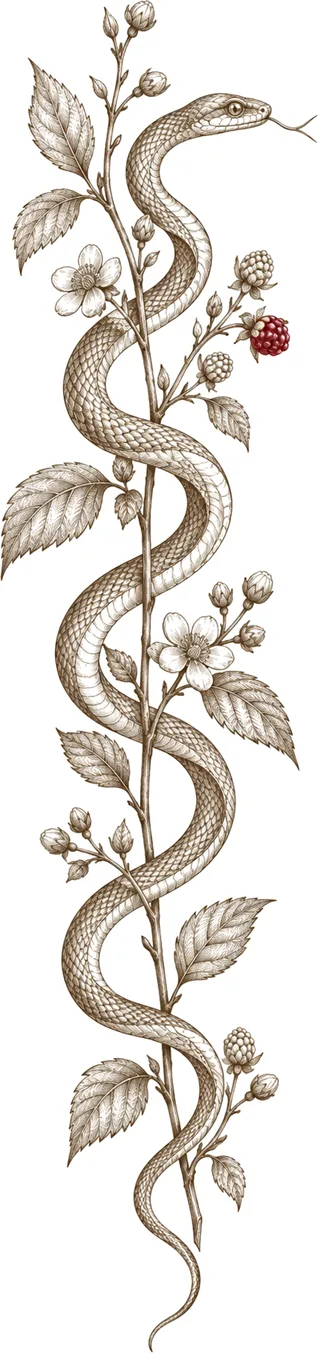
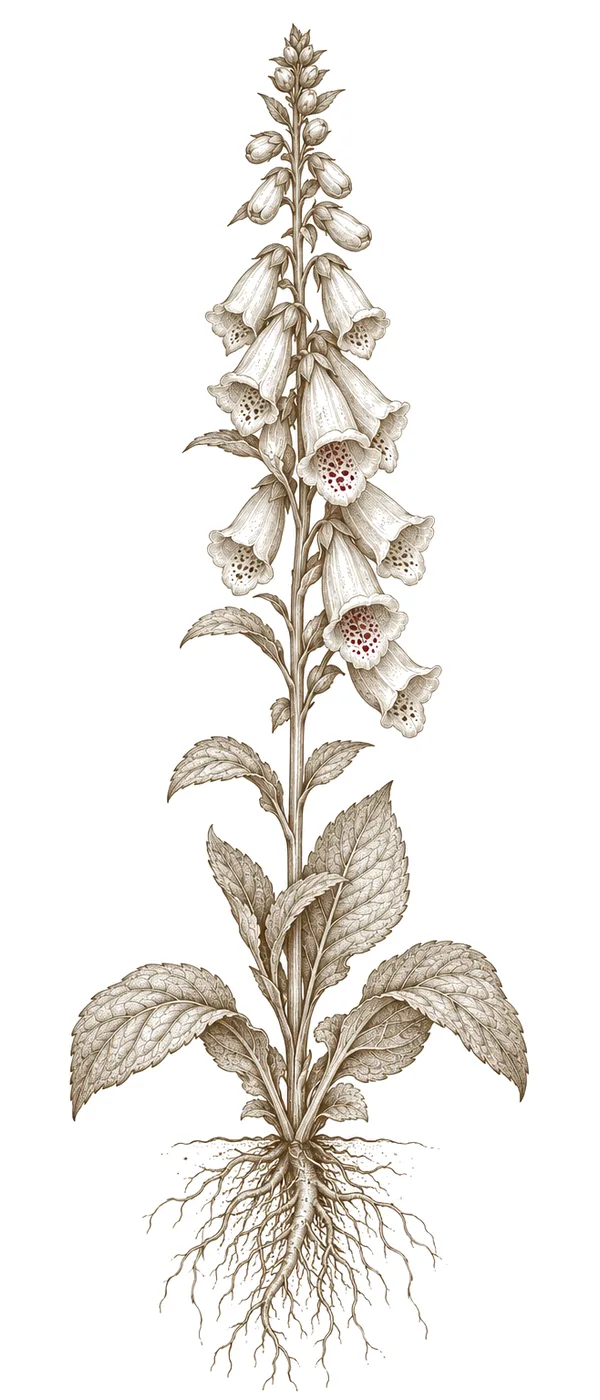
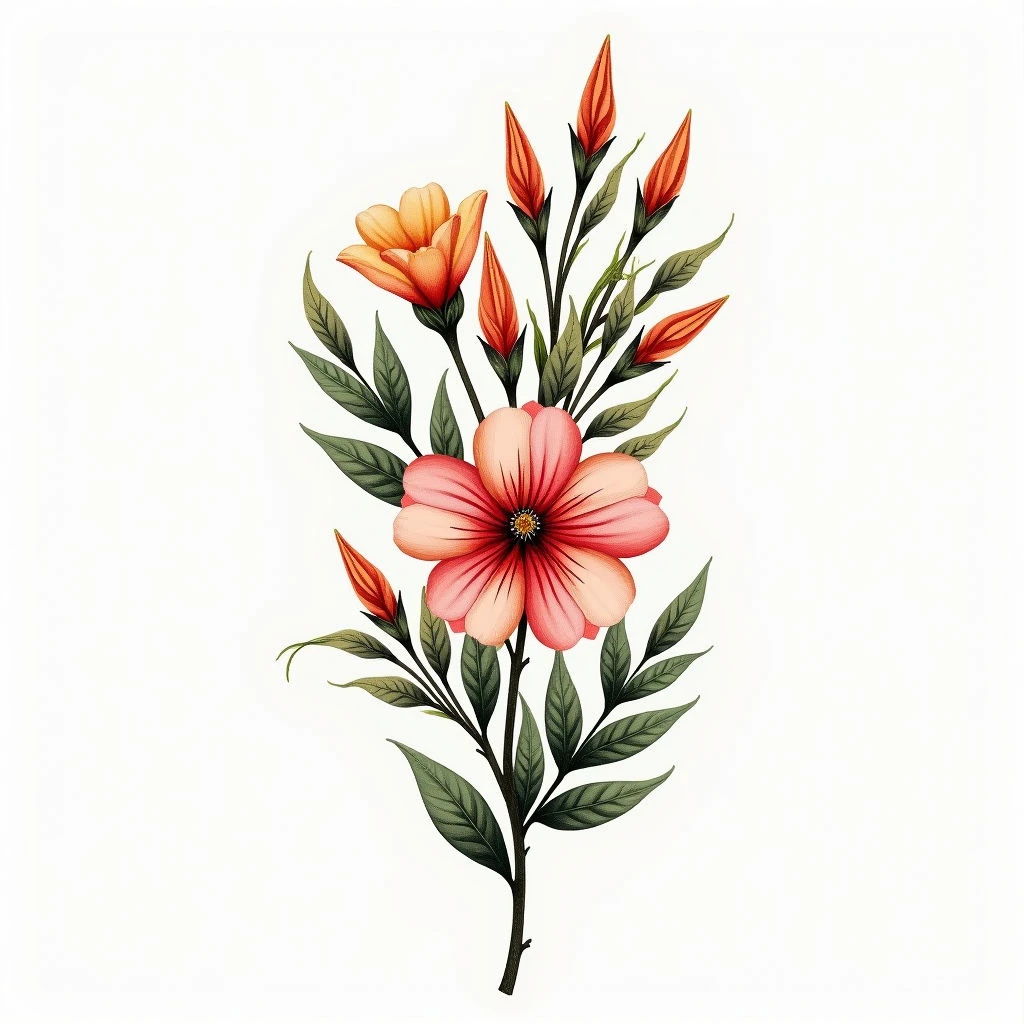
Digital Foundation for Botanical Art
Creating beautiful botanical tattoos starts with a solid digital foundation. Photoshop offers incredible tools for achieving realism and detail crucial for these designs.
Steps to Creating Botanical Tattoos
This guide will walk you through the core steps:
Gather Reference Images
Accurate botanical art demands precise observation. Collect high-resolution photographs of your chosen plant species, focusing on leaf structure, flower anatomy, and branching patterns. Multiple angles are essential.
Sketching & Composition
Begin with a rough sketch to establish the overall layout. Consider how the design will flow with the body’s contours. Use Photoshop's brushes (round, hard, charcoal) for this initial stage.
Line Art & Detailing
Create clean line art using a stylus or mouse. Employ layers meticulously; each element (stem, leaf vein, petal) should reside on its own layer. The 'Smooth' tool is invaluable for correcting shaky lines.
Shading & Texture
Botanical realism hinges on accurate shading. Use the blending modes (Multiply, Overlay, Soft Light) to mimic how light interacts with plant surfaces. Experiment with textures – subtle grain or leaf patterns can add depth.
Color Palette & Rendering
If designing color tattoos, carefully select your palette based on the plant’s natural hues. Gradient maps and adjustment layers are key for nuanced coloring. Remember that botanical pigments vary in intensity.
Stencil Creation
Once satisfied with your design, flatten it (or merge visible layers) and adjust contrast to create a printable stencil. A high-contrast black and white image is crucial for the tattoo artist.